
How to Log In to Your Discord Account: Reading the Line, 2FA and Securing It
October 16, 2026
BuyDiscordAccounts Support Desk· Customer support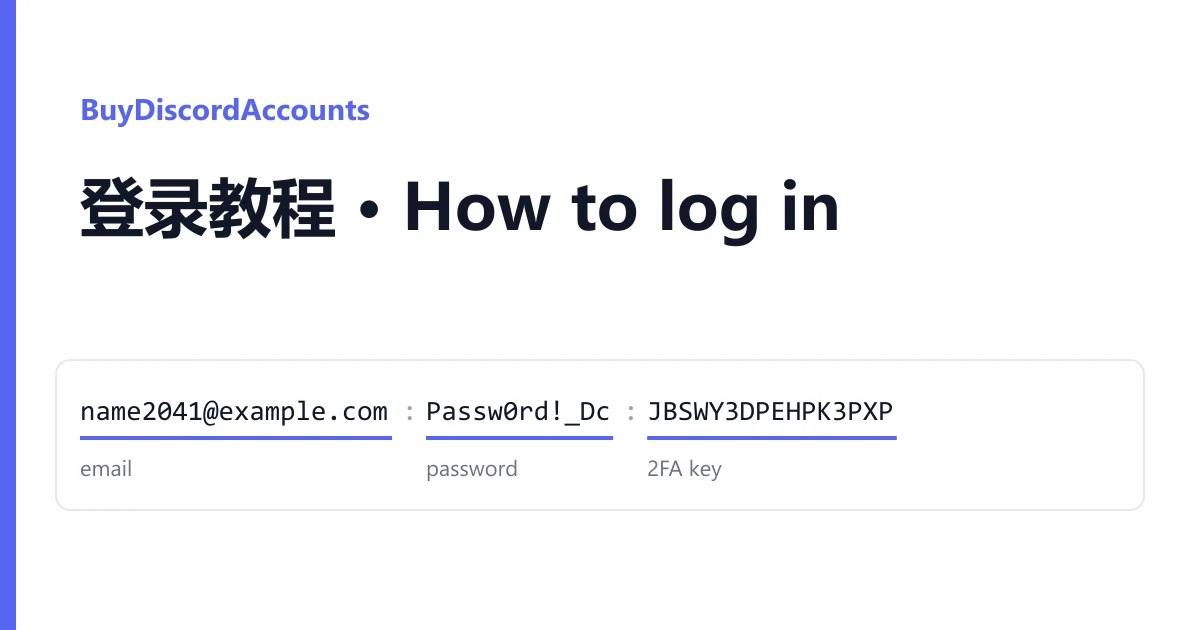
Each Discord account you buy is one line of text on your order page, also sent in the delivery email. The fields are joined by four dashes, ----, and on most listings they come in the same order. Here is an invented line in the most common shape:
name2041@example.com----mailpass2041----Passw0rd!_Dc----JBSWY3DPEHPK3PXP----EXAMPLEtokenNOTreal.Ab12Cd.example_only_valueRead it from left to right.
The line, field by field
- Email (
name2041@example.com). The address the Discord account is registered to, and what you type in the first box when you sign in. Listings name the provider, often Rambler, Gmail, Outlook, GMX or mail.com. - First password (
mailpass2041). On five-field lines this is usually the mailbox password: use it at the email provider's own website to read the account's mail. - Second password (
Passw0rd!_Dc). The Discord password. Some listings register the mailbox and Discord with the same password and then send only one; the listing says so. - 2FA key (
JBSWY3DPEHPK3PXP). Capital letters and digits, sometimes in groups with spaces. It is the secret behind the six-digit sign-in code, not a code itself. A few listings add a list of backup codes after it. - Token (three parts joined by dots). The session string Discord's app keeps after a sign-in. It is part of the delivery format and nothing more: you do not need it to sign in with the email and password, and it stops working the moment the password changes.
Shorter lines drop fields rather than reorder them: mail:password:token is email, Discord password, token. If you are unsure which password is which, try the second one on Discord first, then the first. Do not cycle through more attempts than that.
| The title says | What that means for your line |
|---|---|
| Email included | The mailbox password is in the line and the mailbox should open |
| Email may not work | Plan to use Discord with its own password and 2FA key only |
| 2FA, backup codes | The key is in the line; backup codes follow it where listed |
| Login via token only | There is no usable password. This guide's sign-in steps do not apply; pick a listing with a password if you want a normal sign-in |
Signing in
- Go to discord.com/login, or open the Discord app, and enter the email and the Discord password.
- Discord may show a short captcha. Solve it yourself; it is a normal part of signing in.
- If Discord asks for a code, paste the 2FA key into the 2FA code generator at https://checkkit.net/en/online-2fa-code-generator and type the six digits within 30 seconds. On listings with backup codes, "Use a backup code" accepts one of those instead; each works once.
- If Discord says it needs to confirm a new login location, it sends an email to the account's address. Open the mailbox with the first password, click the link in that email, then sign in again.
Securing the account
All of these are under User Settings. Make one change, check that you can still get in, then make the next. Each one ends something that came with the delivery:
| Change | Where | What it ends |
|---|---|---|
| 1. Log out unknown devices | Devices | Any other session still signed in to the account |
| 2. New password | My Account, Password and Authentication | The old password and the delivered token |
| 3. Your own email | My Account, Email | The delivered mailbox's hold on the account. Discord may first send a code to the current address, so do this while the delivered mailbox still opens |
| 4. Your own 2FA | My Account: remove the authenticator, then enable it again with your app | The delivered 2FA key and any delivered backup codes. Save the new backup codes Discord shows you |
On "email may not work" listings, skip step 3 and do the other three. Keep the new password, the new backup codes and your 2FA app's entry in a password manager.
The phone number used to verify the account is not part of the delivery. If you want a phone on the account, add your own under My Account.
When it will not open
"Login or password is invalid"
Swap to the other password once. Check there is no space at the end of what you pasted. If both fail, report it.
The six-digit code is refused
Wait for the next code and type it straight away, and check your device clock is set automatically. Make sure you pasted the 2FA key, not the token.
Discord asks to verify a phone number
The account is locked until a phone is added. Take a screenshot and report it within the warranty window instead of adding a number.
"Account disabled" or "scheduled for deletion"
Screenshot the message and report it. Do not appeal from the account first.
Opening a ticket
Use the order page, before the warranty window on the product closes. Say which line failed (the email is enough), what step stopped you, and attach a screenshot of Discord's message. Signing in never voids the warranty; bans caused by bulk or automated activity are not covered. Support never asks for your own Discord password, token or codes.
Comparing listings? The home page explains age, verification and badges, and the catalogue lists what is available.